Quick answer: You can turn an app idea into approved requirements and a full set of designed screens without writing a spec or hiring a designer. On NeoCrew AI you describe the idea in one paragraph, answer a few questions, lock the scope and approve a product requirements document (PRD) in Discover. Design then turns that PRD into a brand, a logo and every screen of your app. This post follows Daily Cup, a café loyalty app, through both stages.
Most app ideas stall between “I have an idea” and “here is what it looks like”. Writing requirements feels like homework, and design feels like a skill you have to hire.
This post follows one small app, Daily Cup, a loyalty card for a neighbourhood café, from a single paragraph to approved requirements and 17 designed screens. NEO, NeoCrew’s AI technical co-founder, walks through the whole thing in under three minutes:
Daily Cup at a glance
| What it is | A digital loyalty card for a neighbourhood café |
| Who it is for | Regulars, the barista and the café owner |
| What we started with | One paragraph |
| What came out | An approved PRD, a brand, a logo and 17 designed screens |
| Code written so far | None. That comes in Blueprint and Build |
The idea, in one paragraph
Daily Cup lets regulars collect stamps on their phone instead of a paper card. The barista adds a stamp at the counter. The owner sees who comes back and rewards them.
That paragraph is all you need to start.
Step 1: Discover, from a paragraph to approved requirements
Discover is the first stage. It turns your idea into questions, a locked scope and a full PRD. Nothing is designed or built until you approve it.
A first look: a name and three sketches
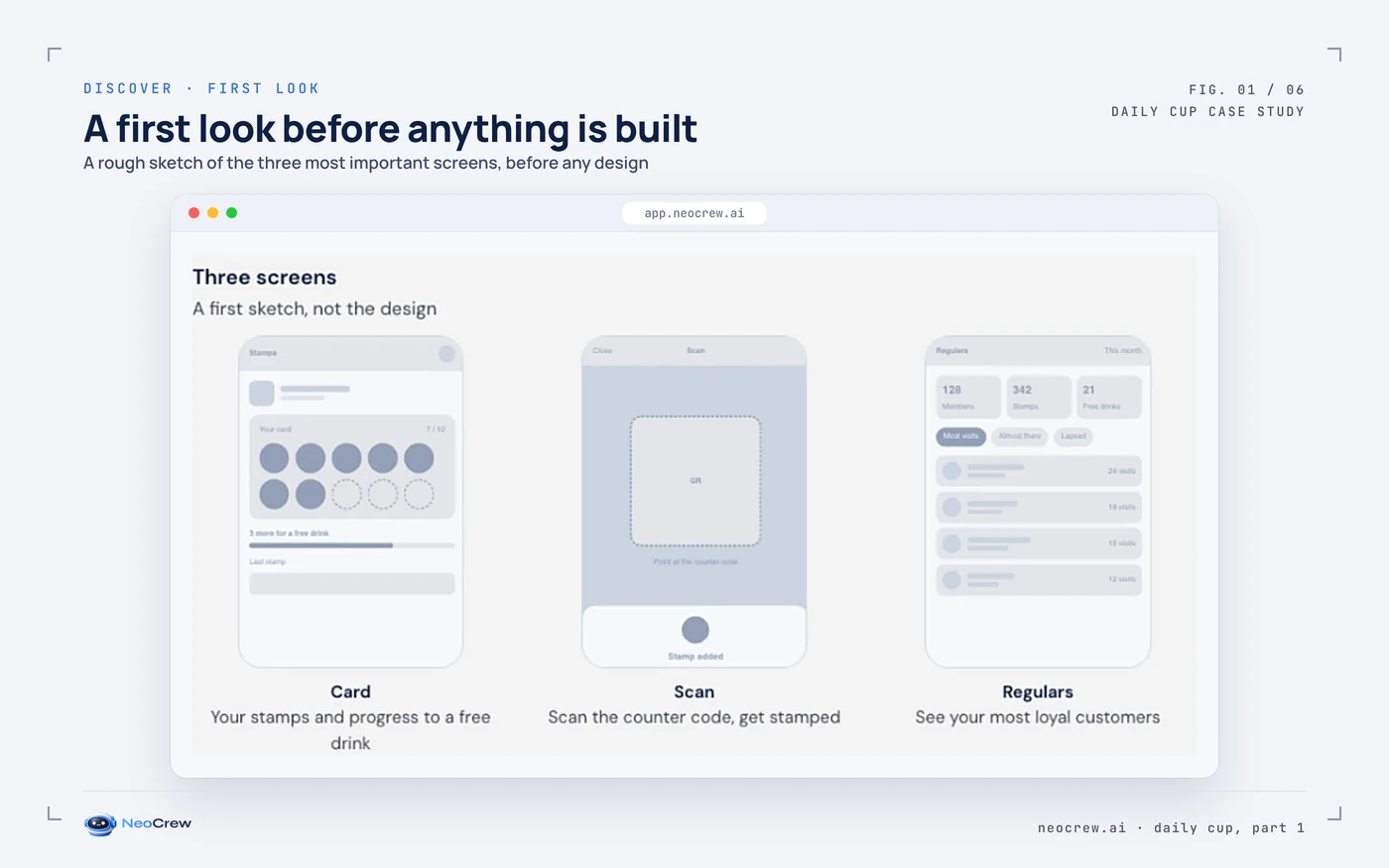
Before anything else, NEO reads your idea back to you, so you know it understood. You get a few name suggestions or type your own, and a rough sketch of the three most important screens. For this app, the name became Daily Cup.
A few smart questions
Next, NEO asks a handful of questions about your product. Each one has clear options and a short note on why it matters, such as how the stamp is confirmed at the counter so customers cannot collect stamps they have not earned.
Pick the scope
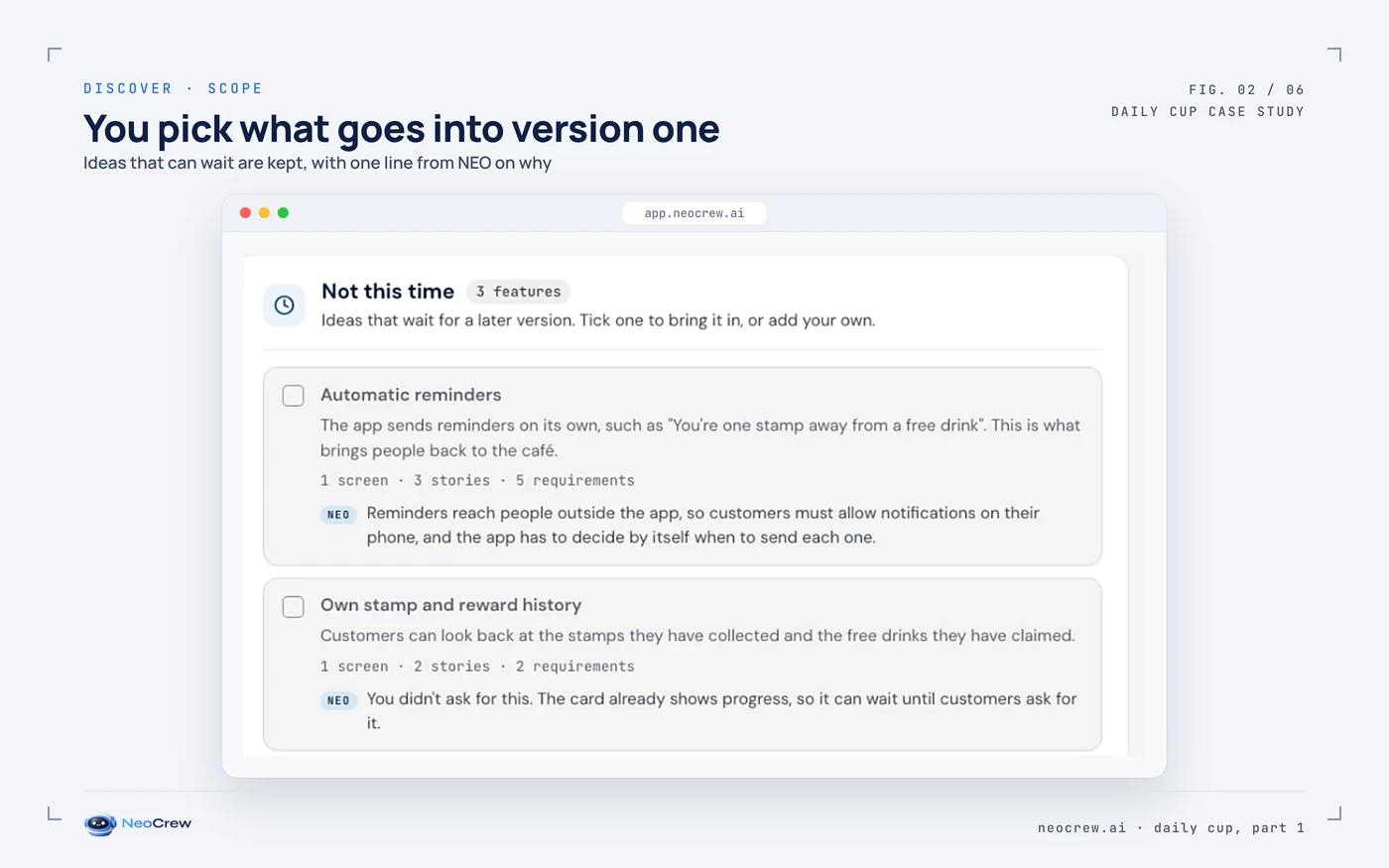
NEO suggests what goes into the first version and what can wait. You tick, untick or add your own, choose how people sign in, then lock the scope. Small first versions ship.
Get your requirements
From exactly what you ticked, NEO writes the product requirements document: who it is for, every requirement with how you will know it is done, the user stories and the flows. For Daily Cup, the people became three clear users: a morning regular, the barista and the café owner. Every screen later traces back to one of them.
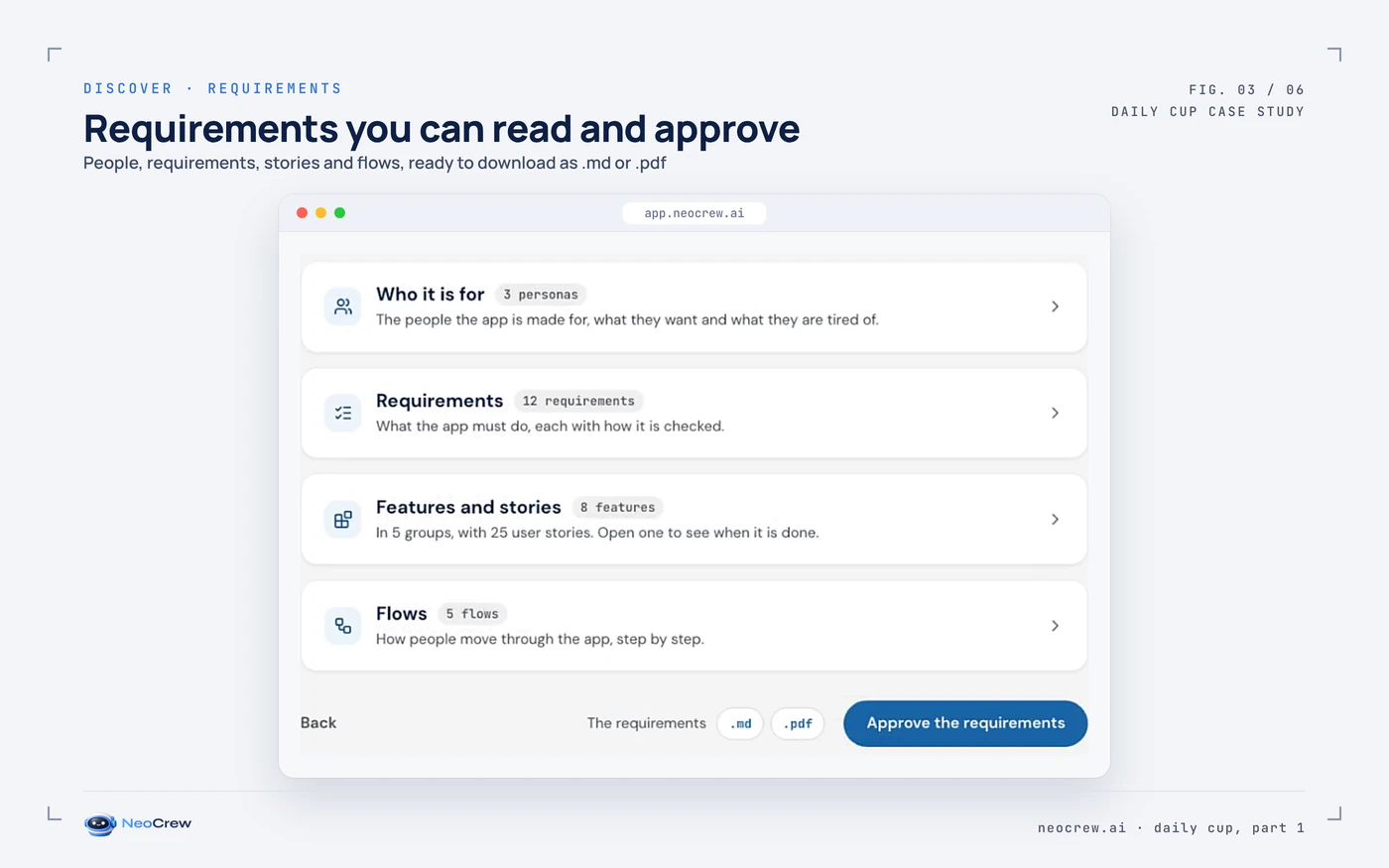
You can download the PRD as a document. When it says what you mean, approve it, and Design starts. Want the long version? Watch the Discover how-to or read how to write a PRD.
Step 2: Design, from requirements to every screen
Design turns the approved requirements into the look of your app, in five steps.
The design brief
NEO reads the requirements and makes a pick for every design choice, such as platform, style, tone and type, with one line on why. You can change any of them, and add your own brand colours, fonts, logo or designs you like.
Brand direction
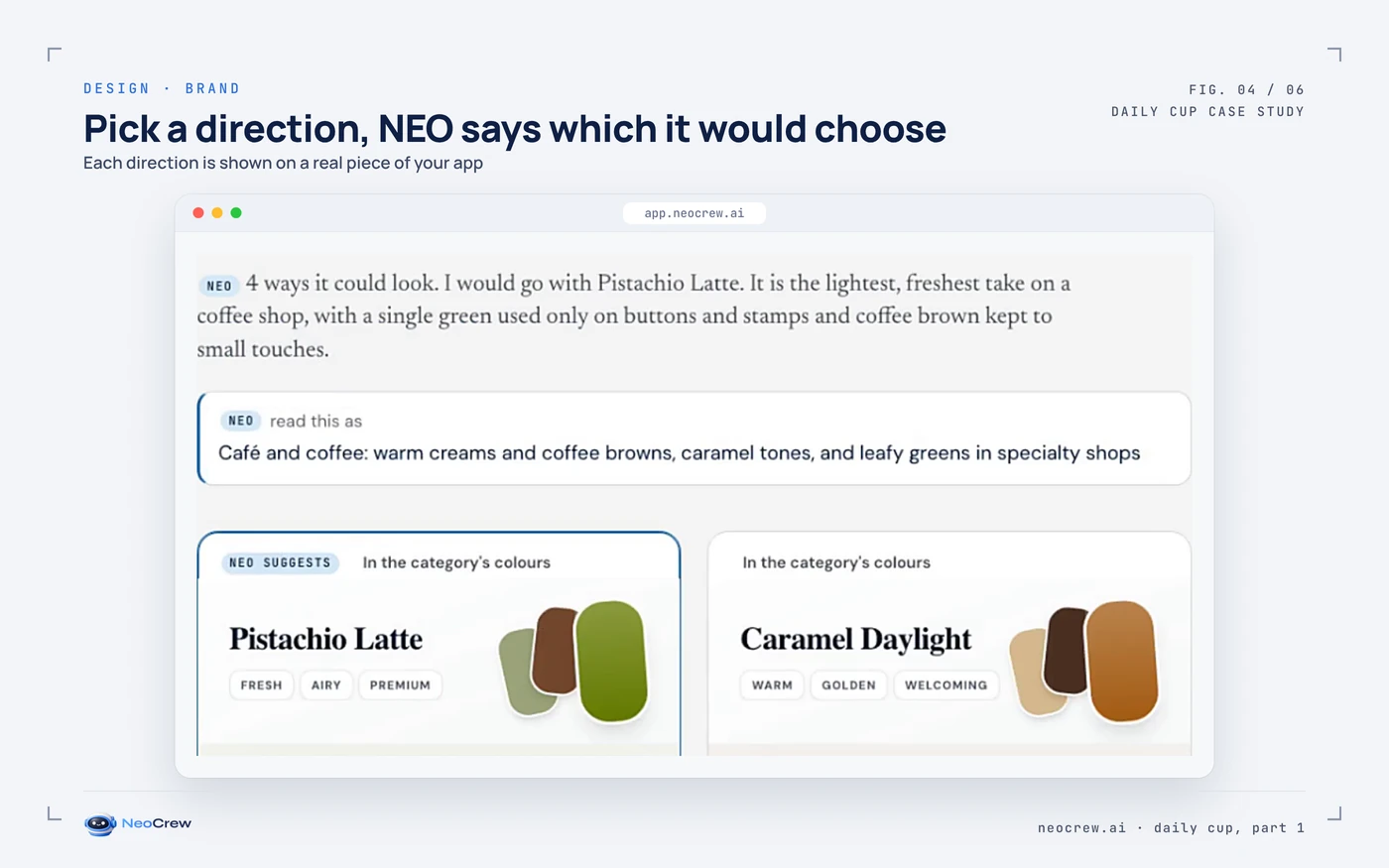
You get four brand directions to pick from, each shown on a real piece of your app. NEO suggests one and says why, but it is your call. Then you can fine-tune colours, corners, shadows and fonts, and NeoCrew checks that everything stays easy to read.
Logo
NEO draws three marks from your brief. Not quite right? Describe what you want, and you get three more.
Screen list
NEO lists every screen the app needs, straight from the requirements, grouped into parts. Open any screen to see what is on it. If something is missing, leave a note, and NEO adds it before you approve the list.
Design every screen
Every screen is designed for your product, in your brand, and you can tap, scroll and type in it. Point at any part, say what to change, and you get a new version. Older versions stay, so you can always go back. Need the same change on many screens? Select them and say it once.
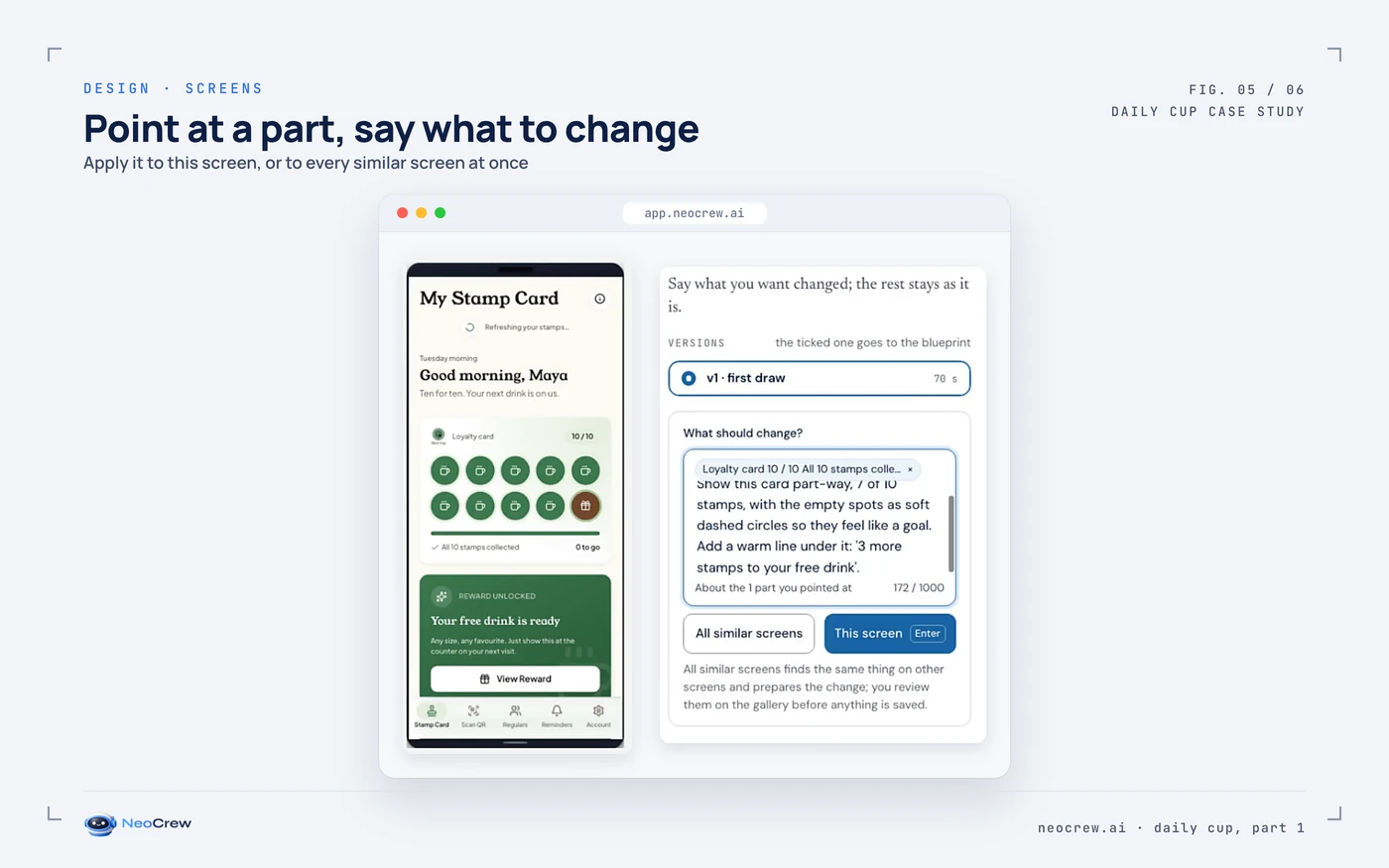
When you are happy, approve the designs. For Daily Cup, that was 17 screens.
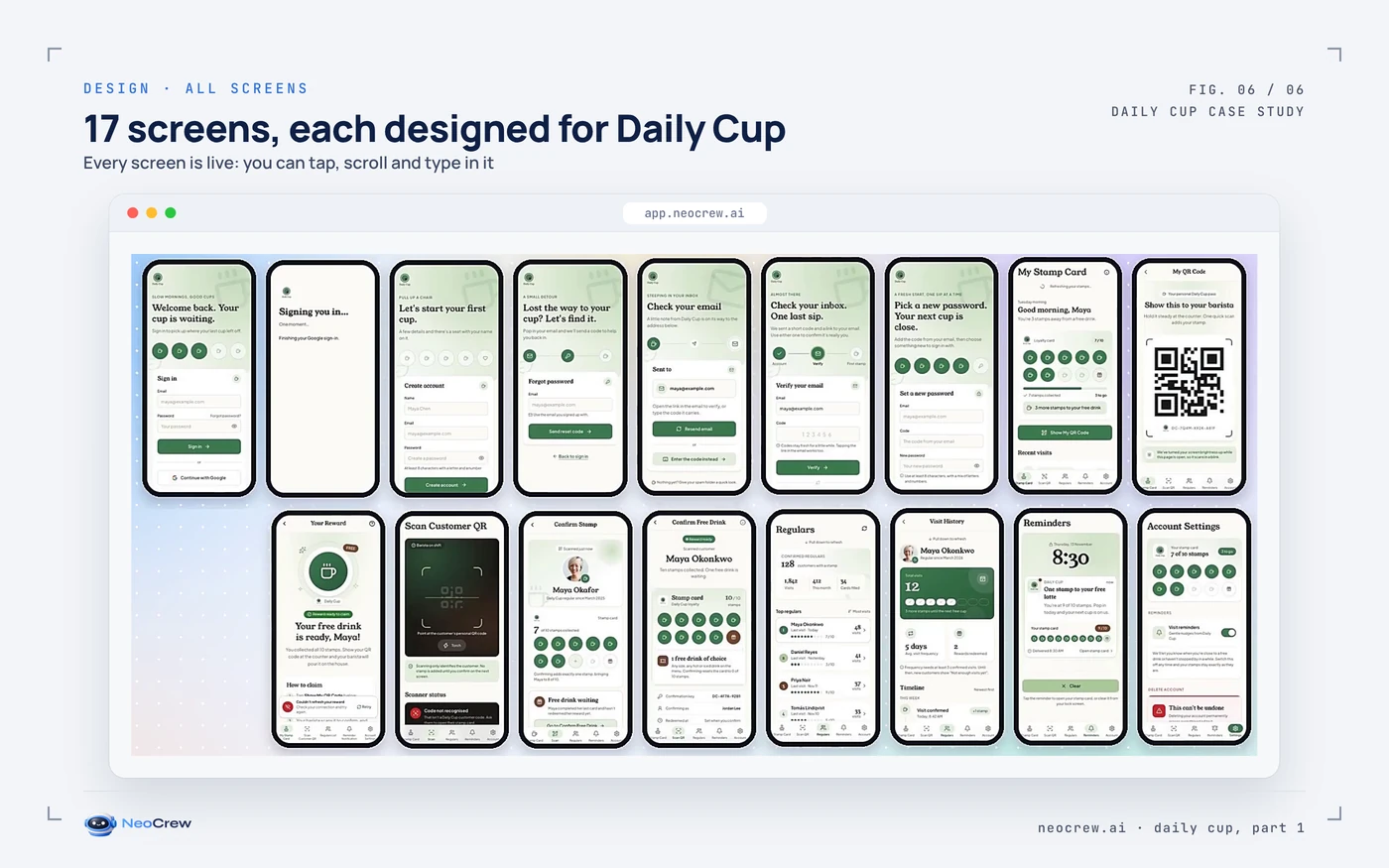
For a closer look at each step, watch the Design how-to.
Not happy with a direction? Fork it
If a direction is not right, you do not start over. You fork the project from that step, tell NEO what to change, and get a new direction while the original stays as it was. Here is the fork how-to.
What you have after part 1
| An approved PRD | Says what you are building and why. Readable by you, by investors and by any team |
| A brand, colours, fonts and a logo | Your app’s look, settled before any code |
| 17 designed screens | Something real to show users and investors, and to react to while changes are cheap |
No code has been written yet, and that is the point: the expensive decisions are made while they are still easy to change.
What comes next: Blueprint and Build
Next, Blueprint plans how Daily Cup is engineered, in plain language you approve, and Build turns it into a live, tested app. That is part 2, coming soon.
Keep reading
- From idea to live app: how CardFinder shipped a UAE credit card finder
- How to build an MVP in 2026: a step-by-step guide
- How to validate a startup idea
- How much does it cost to build an app in 2026?
- Product requirements document: the complete guide
- How to write a PRD (with a template you can steal)
Frequently asked questions
Do I need design skills to design an app this way?
No. NEO makes a pick for every design choice and explains it. You pick a brand direction, change colours, corners and fonts if you want, and NeoCrew designs every screen for your product.
What is a PRD?
A product requirements document. It says what you are building, who it is for, every requirement with how you will know it is done, and the user flows. On NeoCrew it is written from the scope you approve in Discover.
Can I change the design later?
Yes. You can point at any part of a screen and ask for a change, apply one change to many screens at once, or fork the project from any step to try a new direction without losing the original.
What does it cost?
NeoCrew runs on credits, so you pay for the work done, not for seats. The credits how-to video shows how to add credits, track them and set a monthly budget.